

How to edit Plooner templates
Every template in Plooner is edited the same way, so once you have done it once you can use any of them. For the best result, add your branding and Brand Voice first – the editor uses both. If you have not done that yet, start with How to add branding to Plooner.
Open a template
At the top of your Content Planner you will find Recommended this week – seven templates, one per day, each already synced to its audio. Click the title of the one you want to use and it opens in the editor.
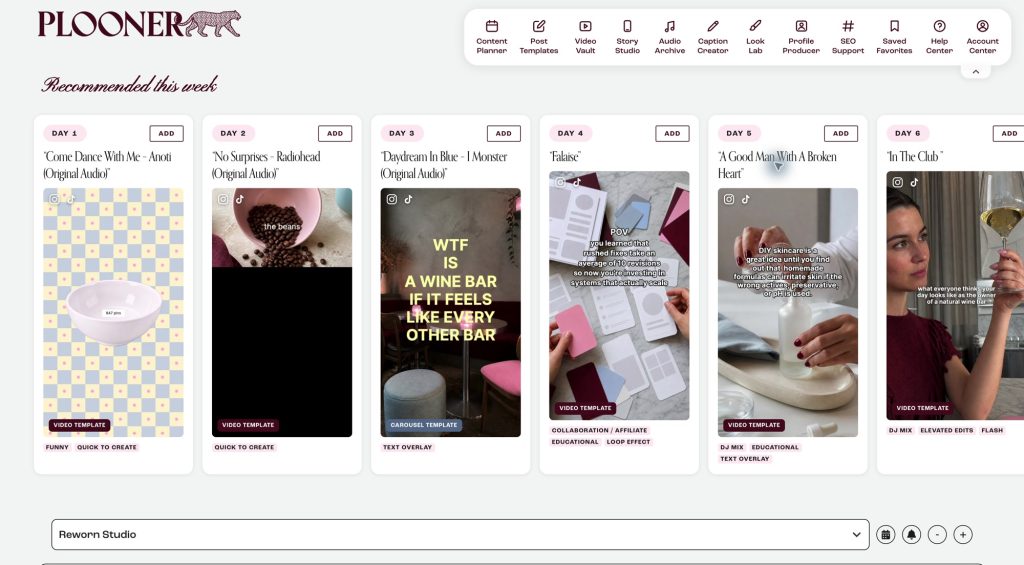
You’ll also find templates in the Audio Archive, Story Studio and Look Lab.
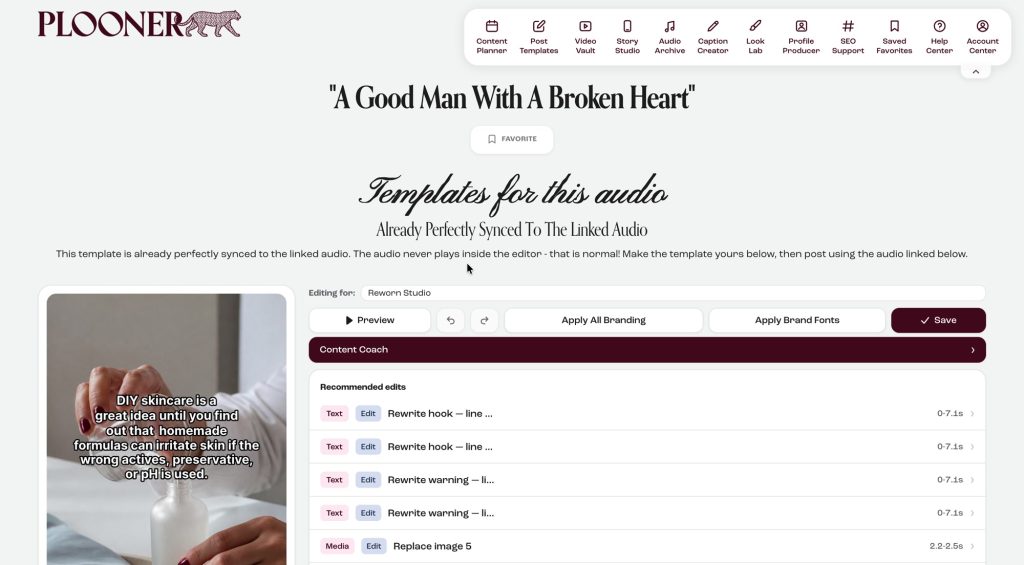
Let the AI write the texts
Open Content Coach and click AI Smart Suggestions. Every text in the template is rewritten for you, based on the Brand Voice saved in your planner. Give it a few seconds and the new texts appear both in the layer list and in the preview.
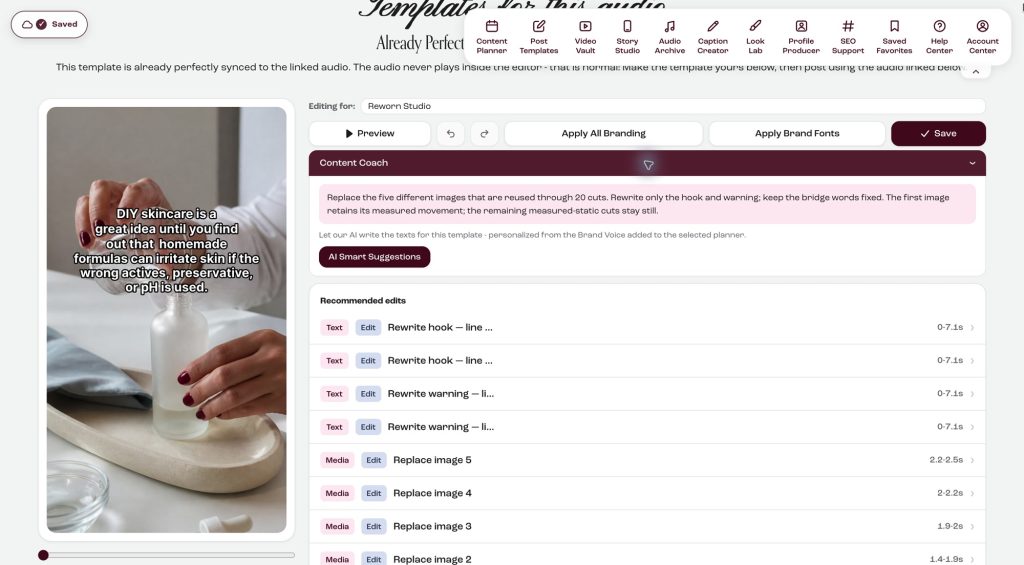
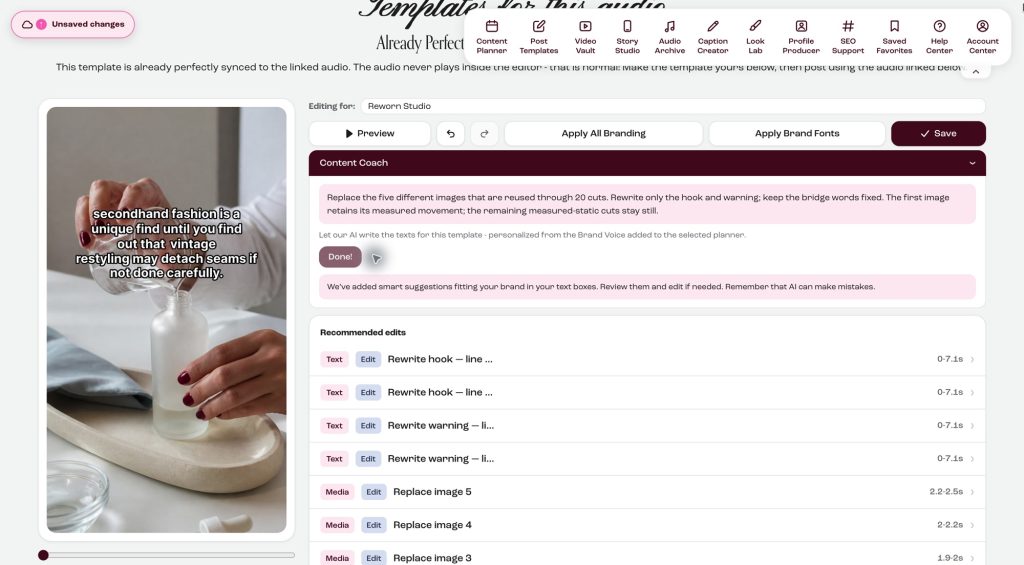
Change a text
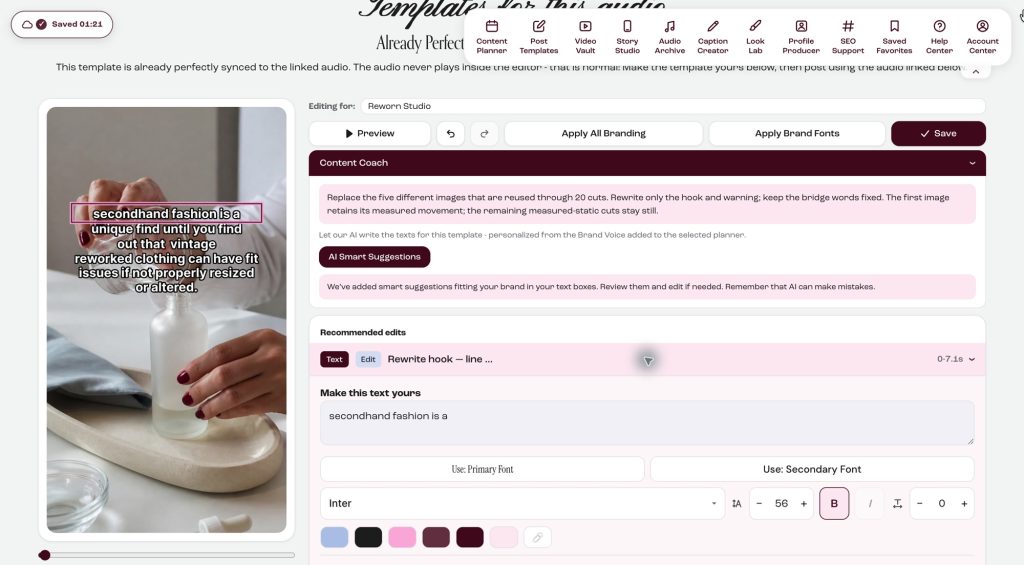
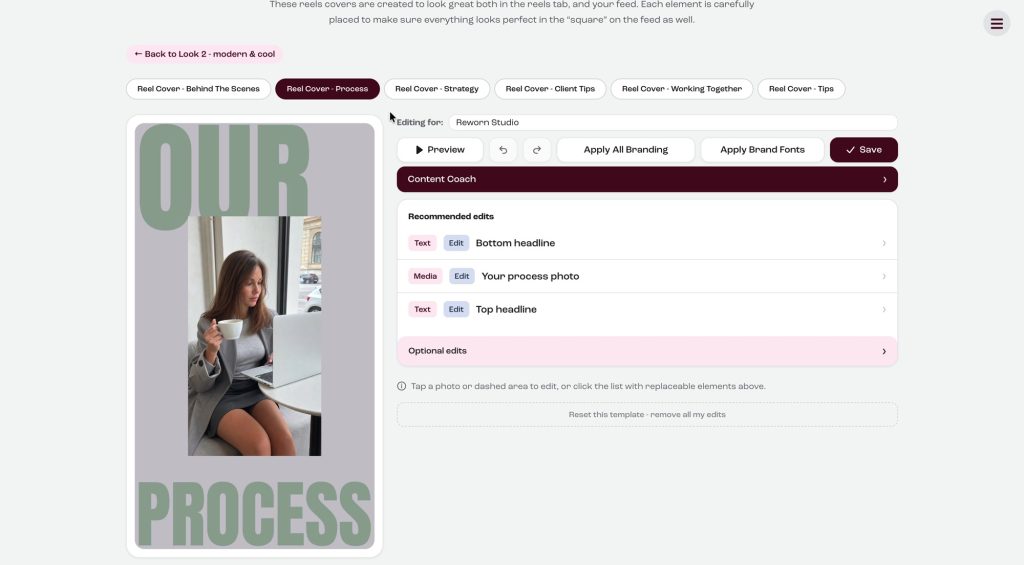
Under Recommended edits you see every text and media layer in the template. Click a Text layer, or click the text directly in the preview, and type your own text. If you want, you can switch to your own fonts and brand colors right there in the same panel.
Change a photo or video
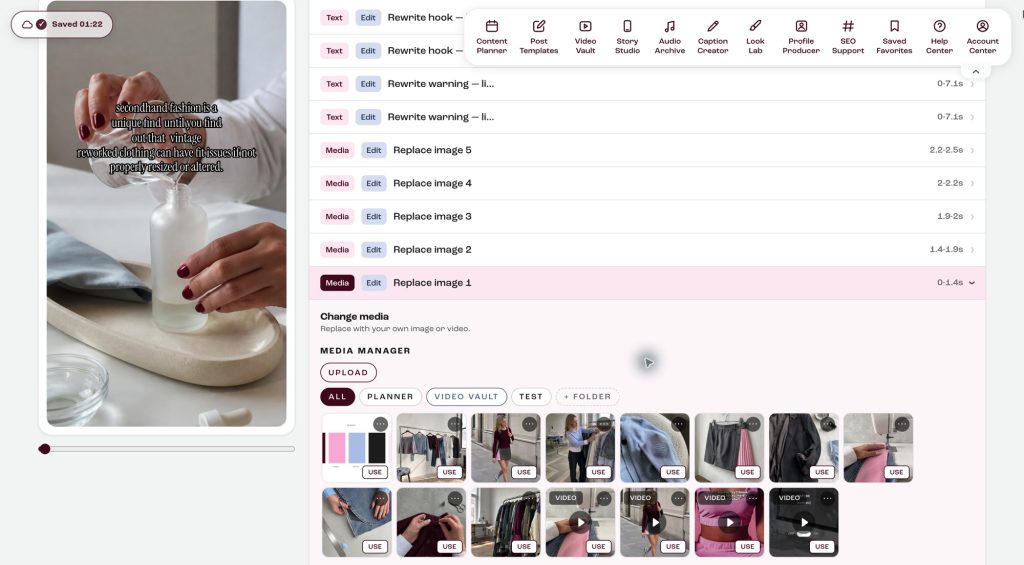
Click a Media layer and pick a photo or video from your Media Manager, or upload a new one. If you add an image it is usually animated in the template. If you pick a video instead, the animations disappear automatically, which gives a more premium feel.
Preview
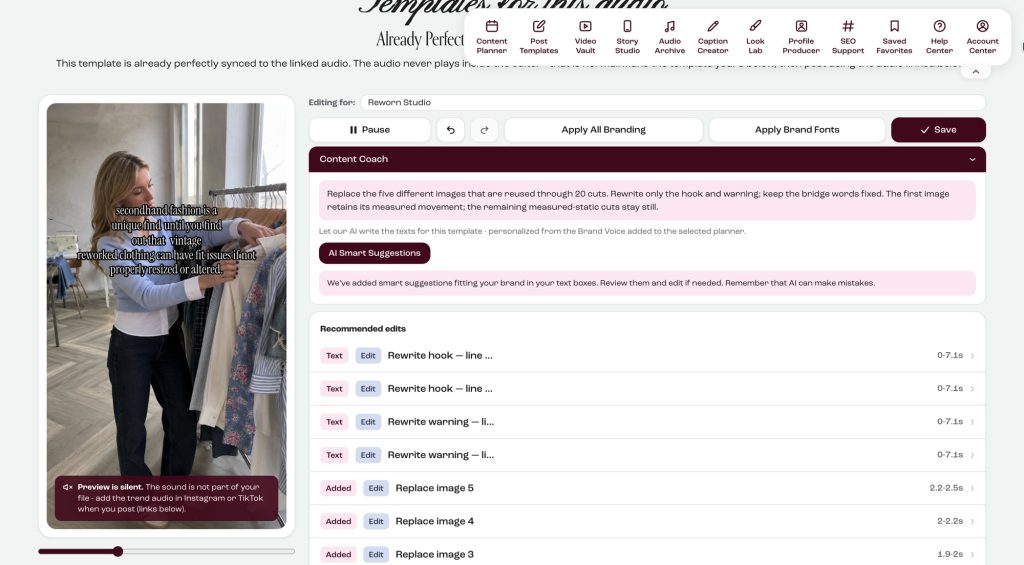
When all texts and media are swapped, click Preview to see it all play together. The audio never plays inside the editor – that is normal. You add the audio when you post, so it gets connected to the correct audio page on Instagram or TikTok. How to do that is covered in the posting tutorial.
Save
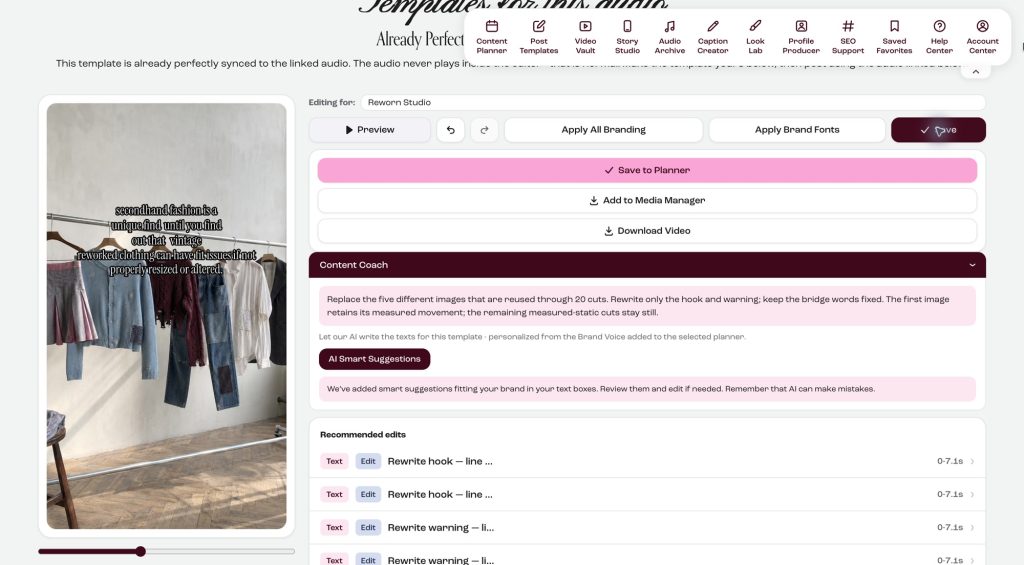
Click Save. You get three options: Save to Planner, Add to Media Manager and Download Video. We recommend Save to Planner. That puts the video on a day in your Content Planner, and when you are ready to post you download it from there. If you have saved the planner to your phone’s home screen, you will even get a notification when it is time to post.
Look Lab templates
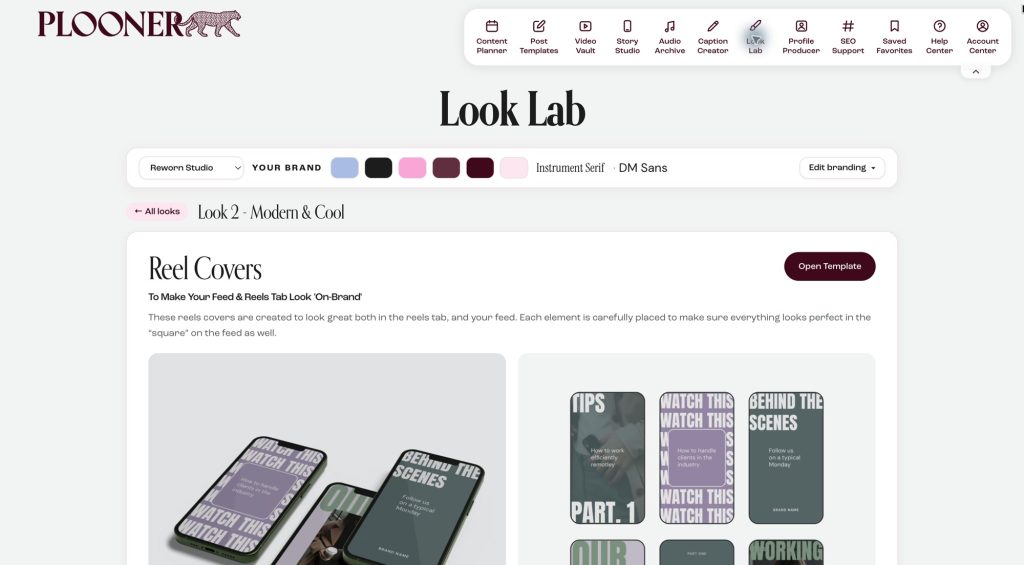
All our templates work the same way, including the ones in Look Lab. Open Look Lab, click Select on the look you want, and open a template, for example the Reel Covers. Change the text, click Apply All Branding, and then Switch Brand Colors a few times until it looks just right.
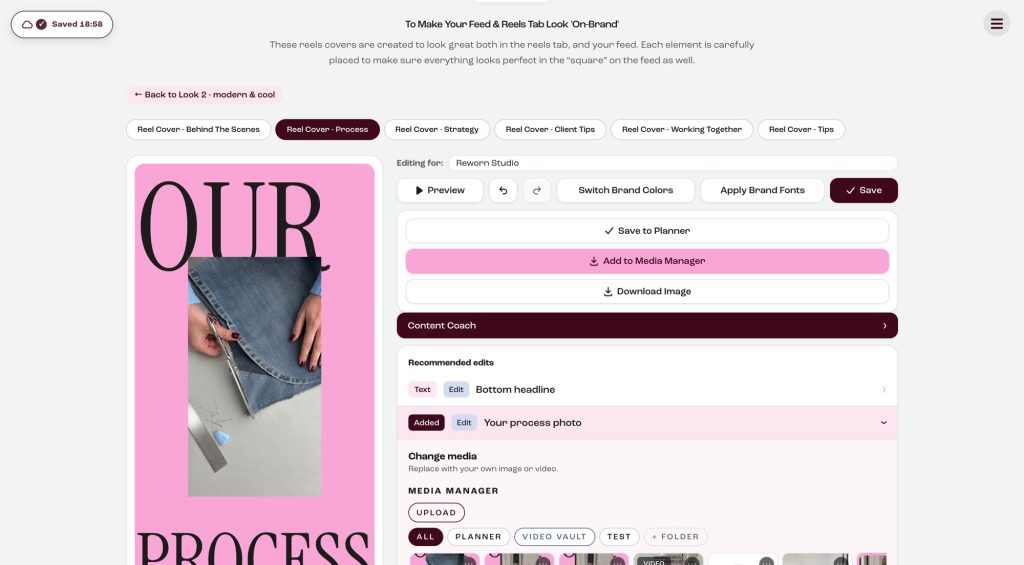
Click Save. For covers we recommend Add to Media Manager, so they are ready whenever you post a reel.
Questions or need more help? Start a chat with us right here in the Help Center.